You can easily send patients from Neo to SmartFlow, to track and complete treatments related to surgical and non-surgical procedures, boarding, and more.
Once treatments are completed in SmartFlow, charges can automatically be captured on the patient consultation in Neo.
Prerequisites: Practice must have an active SmartFlow account integrated with Neo.
See Set up SmartFlow to learn how to integrate SmartFlow with Neo.
See FAQs: SmartFlow integration with Neo for answers to common questions.
Send patient to SmartFlow from patient consultation
You can send a patient to SmartFlow from a saved, draft consultation.
- Create a new consultation or update an existing consultation.
- Click the Send to SmartFlow button.
Tip: If you created a new consultation, you must click Save for the Send to SmartFlow button to display. - Review and update, as needed, the information in the Send to SmartFlow window.
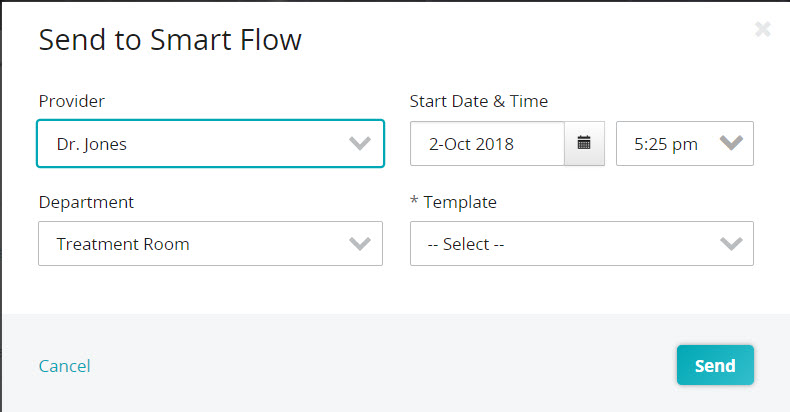
- *Provider – the consultation provider. This will be listed as the Doctor on Duty in SmartFlow.
- Start Date & Time – the treatment start date and time. This can be backdated, if needed.
- Whiteboard – synced from SmartFlow, the whiteboard the patient will be sent to.
- *Template – synced from SmartFlow, the treatment or flow sheet template to use for the patient’s current surgery, procedure, disease state, etc.
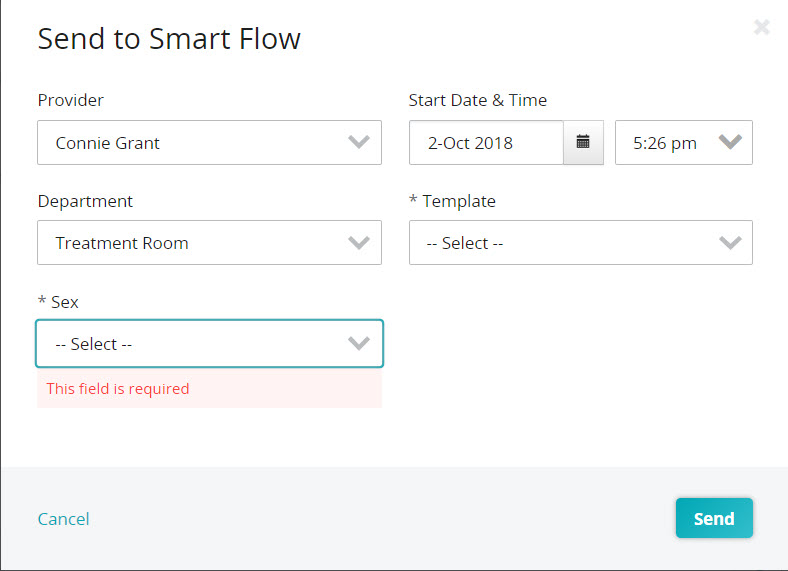
- *Sex - You will only see the *Sex drop-down field if the patient sex is blank on the patient Overview tab. The selected value will be saved to the patient Overview tab.
Note: An asterisk (*) denotes a required field.
- Click Send.
Note: Once the patient has been sent to SmartFlow, the Send to SmartFlow button changes to Open in SmartFlow. You can click the Open in SmartFlow button to open the patient in SmartFlow. The patient’s flowsheet will open in a new browser tab.
Send patient to SmartFlow from Procedures
If your practice uses Procedures, you can send a patient to SmartFlow and create a consultation from the patient procedure.
IMPORTANT: To prevent sending the patient to SmartFlow twice, do not add a patient to Procedures if you've already sent the patient to SmartFlow from a consultation.
- Create a new procedure.
- On the procedure card, click the Send to SmartFlow link.
- Review and update, as needed, the information in the Send to SmartFlow window.
- *Provider – the consultation provider. This will be listed as the Doctor on Duty in SmartFlow.
- Start Date & Time – the treatment start date and time. This can be backdated, if needed.
- Whiteboard – synced from SmartFlow, the whiteboard the patient will be sent to.
- *Template – synced from SmartFlow, the treatment or flow sheet template to use for the patient’s current surgery, procedure, disease state, etc.
- *Sex - You will only see the *Sex drop-down field if the patient sex is blank on the patient Overview tab. The selected value will be saved to the patient Overview tab.
Note: An asterisk (*) denotes a required field.
- Click Send.
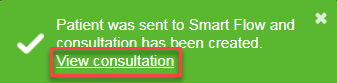
Tip: To view the consultation, click the View Consultation link in the green success message or the Desc link in the procedure.
 |
 |
Note: Once the patient has been sent to SmartFlow, the Send to SmartFlow button changes to Open in SmartFlow. You can click the Open in SmartFlow button to open the patient in SmartFlow. The patient’s flowsheet will open in a new browser tab.
How to determine whether a patient is in SmartFlow
From Neo, you call tell a patient is currently in SmartFlow when viewing a consultation:
-
- The Patient is currently on whiteboard warning above the consultation ID and patient signalment.
- The green SmartFlow icon next to the Consultation ID.
- The Open in SmartFlow button.
Note: You will also see the green SmartFlow icon when you view the consultation history from the Consult tab.
A note about updating or deleting completed treatments from SmartFlow
If you update the quantity/volume on a completed treatment in SmartFlow and the associated Neo consultation is in draft status:
- The corresponding product line quantity is updated.
- The following records are also updated if they are related to the product line:
- Vaccines
- Prescriptions
- Diagnostic orders
If you delete a completed treatment on the SmartFlow treatment sheet and the associated Neo consultation is in draft status:
- The corresponding product is removed from the consultation.
- The following records are also deleted if they are related to the product line:
- Vaccines
- Prescriptions
- Diagnostic orders
Note: If you update or delete a completed treatment in SmartFlow and the Neo consultation status is unpaid, paid, or partially paid, no changes will be made to the corresponding product and any related records in Neo.
Depending on your practice’s workflow, you may either create a refund for the product or update the consultation. See Refund or return a product and Update a consultation for more information.
A note about discharging a patient from SmartFlow
At the end of a patient visit, a patient must be discharged in SmartFlow to remove them from the whiteboard. Marking a consultation ready to be paid will not discharge a patient from SmartFlow.
When you discharge a patient from SmartFlow, in Neo:
- The SmartFlow reports (Medical records, Billing, Notes, Flowsheet, etc.) will automatically download to the associated consultation and patient Files tabs. These reports include:
- Anesthetics
- Billing
- Dental Charts
- Flowsheet
- Medical Records
- Notes
- Note: Custom SmartFlow forms /reports created by your practice will not automatically download to the associated consultation and patient Files tabs. You can save a custom SmartFlow form to your device then attach it to the associated consultation's Files tab. See the Add a file to a consultation section in Add and manage files for more information.
- If a patient weight was entered in SmartFlow, the weight will be added in to the patient’s Vitals tab.
Note: The patient weight recorded in SmartFlow will not populate the consultation in Neo.
Important: If the default weight unit in SmartFlow is different than the default weight unit in Neo, the weight and weight unit that is recorded in SmartFlow will be recorded in Neo without conversion. - If a patient photo was entered in SmartFlow, the photo will be added to the patient’s Files tab with the following properties:
- Title = SmartFlow Patient Photo
- Category = SmartFlow
- Note:
- The SmartFlow patient picture will display as the Neo patient ID photo if there is no existing patient ID photo.
- The SmartFlow patient picture will not display as the Neo patient ID photo is there is already an existing patient ID photo.
- You will see a black SmartFlow icon:
- next to the Consultation ID when viewing the consultation.
- when you view the consultation history from the Consults tab.The Open in SmartFlow button will no longer be available.
- The Patient is currently on whiteboard warning will no longer appear at the bottom of the consultation.
Tip: If you sent the patient to SmartFlow from a procedure, you will need to manually delete the procedure from Procedures.