New feature: A better way to mark and track cancellations and no shows
The boom in patient traffic has also upped the frequency of cancellations, no shows, and rescheduled appointments. We get how disruptive this can be to your practice, so we’ve made it easier to track and manage these schedule surprises:
- A new No Show appointment status
- The ability to mark an appointment as cancelled
- The ability to track cancelled, deleted, no show, and rescheduled appointments.
No Show appointment status
Appointments that are 60 minutes past their start time will have their status automatically changed from Late to No Show to better represent appointments that were missed. If needed, you can still create estimates and consultations from No Show appointments as well as check in the appointment.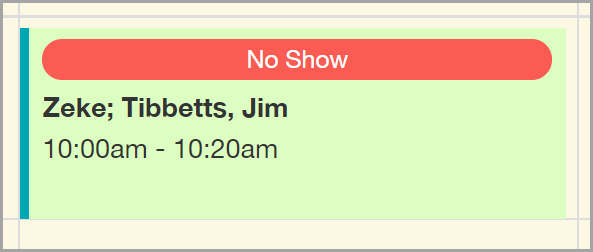
Today's Appointments on the Home page also displays the total No Show appointments for the current day giving you an idea of how many appointments were missed.
Cancelled or deleted appointments
When you delete an appointment, you will have the option to track the appointment as Cancelled or Deleted to support your practice's cancellation policy. 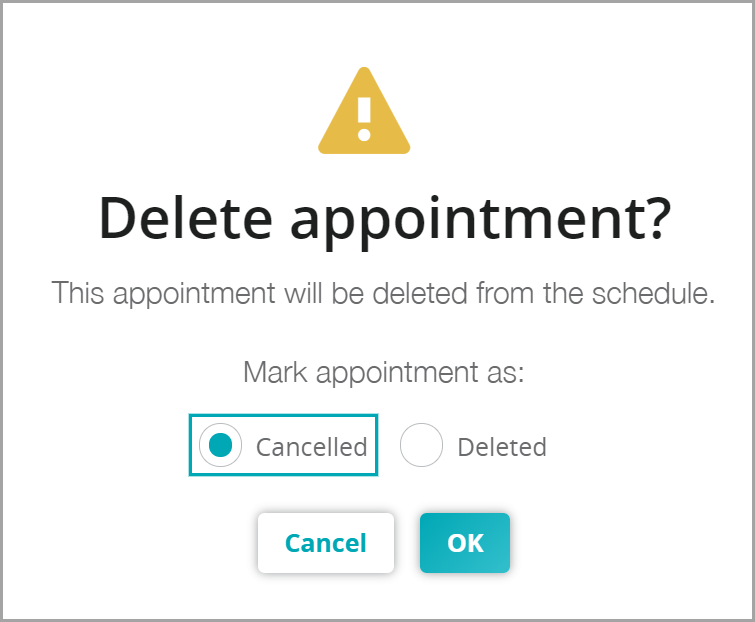
Both options will remove the appointment from the schedule, yet you will be able to see your total number of cancelled appointments from the Practice Dashboard.
Appointment audit list
Missing an appointment you thought was on the schedule? Use the new appointment audit list accessible right from the schedule, to see which appointments were rescheduled, cancelled or deleted!
To top it off, you can view cancelled, deleted, and rescheduled appointments from the client Appointments tab now too!
More patient info on appointments
When you click on an appointment from the Schedule, the appointment popover card displays with additional patient signalment information including: species, breed, sex, age, weight, and temperament.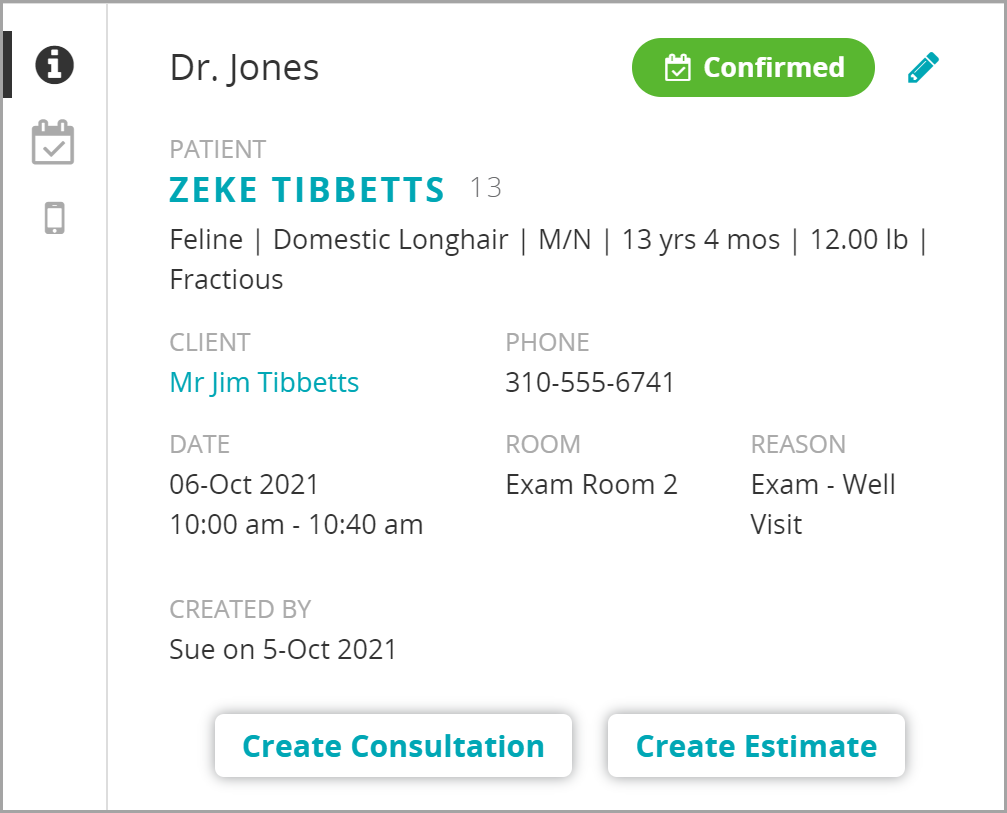
That's it for new features with this release! To learn more about any of these features, click one of the links below - or search for these topics by clicking the Help Me tab when logged in to Neo!
Additional resources
Change an appointment
Navigate the Schedule and view appointment audit details
View appointments for a client and patient
FAQs: Appointments
FAQs: Reports