This article covers frequently asked questions about the setup required to integrate Neo with IDEXX in-house analyzers and your IDEXX VetLab Station (IVLS), including setting up your IVLS and activating available IDEXX in-house tests in Neo.
To learn more about the overall setup steps required in Neo for the two-way integration with IDEXX VetLab Station, see Connect IDEXX in-house Analyzers and VetLab Station
To learn more about ordering diagnostics using IDEXX in-house analyzers, see Order diagnostic products
IDEXX VETLAB STATION SETUP
- Have you activated the pending list? Tap Settings > Home Screen > Display Pending List
-
Have you recently changed network equipment? Verity that your VetLab station is online by looking for the green light beside the SmartService icon.

- Have you activated IDEXX VetLab Station products in Neo? Go to Diagnostics > Directory of Services and select the available tests you would like to activate. You will not be able to order an IDEXX in-house test until it is activated.
- Have you inactivated existing diagnostic tests? Remember that you must order the downloaded IDEXX diagnostic product, not an existing locally entered product for it to appear as an order in the IVLS. To avoid this problem, inactivate any existing diagnostic products that you are replacing with IDEXX in-house tests.
- Does the pet owner have a first and last name recorded in their client record? The client first and last name are required to display the tests you ordered in the pending list on the IDEXX VetLab Station.
- Have you activated IDEXX VetLab Station products in Neo? Go to Diagnostics > Directory of Services and select the available tests you would like to activate. You will not be able to order an IDEXX in-house test until it is activated.
- Have you inactivated existing diagnostic tests? Remember that you must order the downloaded IDEXX diagnostic product, not an existing locally entered product for it to appear as an order in the IVLS. To avoid this problem, inactivate any existing diagnostic products that you are replacing with IDEXX in-house tests.
-
Are you on version 4.37 or higher? To use the two-way integration with Neo, your VetLab Station must be on version 4.37 or higher. To check your version, tap Instruments. Your software version displays in the top-left corner. If you need help upgrading, contact IDEXX VetLab Station customer support: 1-800-248-2483, Option 8.
If you have confirmed you are on version 4.37 or higher, we recommend restarting your IVLS and re-entering your VetConnect PLUS credentials.
-
Have you recently changed network equipment? Verity that your VetLab station is online by looking for the green light beside the SmartService icon.
-
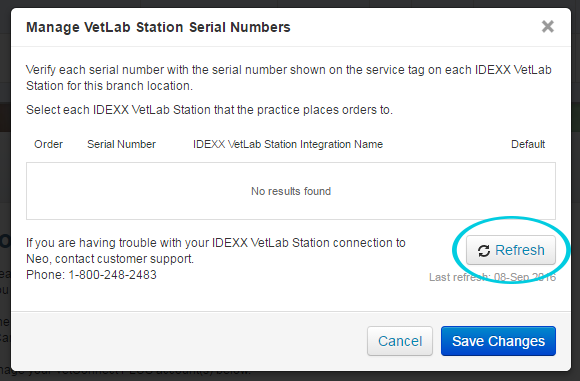
Have you recently serviced, replaced, or renamed your VetLab Station? Updating or renaming your VetLab Station may require you to reselect it for ordering. You can manually refresh the list of available serial numbers by clicking the Refresh button on the Manage VetLab Station Serial Numbers modal.
 on the IVLS Home screen provides connectivity information via red and green lights.
You must activate IDEXX VetConnect PLUS on your IVLS.
Tap Settings > VetConnect PLUS > Activate VetConnect PLUS and then enter your credentials.
To test your connection, tap the Test Connection button.
For more information see the IDEXX VetLab Station Operator's Guide: Customizing the Settings > IDEXX VetConnect PLUS Settings.
CONNECT VETCONNECT PLUS IN NEO
- Email support
- United States 1-888-433-9987
- Canada 1-800-667-3411
- Australia 1300 44 33 99
- New Zealand 0800 838 522
- United States 1-888-433-9987
- Canada 1-800-667-3411
- Australia 1300 44 33 99
- New Zealand 0800 838 522
If you have already connected your VetConnect PLUS account and managed reference data, go to Administration > IDEXX Diagnostics to connect your VetLab Station to Neo:
- Click the menu button
in the credentials area and select Manage VetLab Station Serial Numbers.
- Verify each serial number and select each IVLS the practice places orders through. If needed, click Refresh.
- If you are connecting multiple stations, in the Default column, select the default IVLS for the practice.
- Click Save Changes.
PRICING AND ACTIVATING IDEXX IN-HOUSE TESTS
Always. Review the Directory of Services list of all available IDEXX VetLab Station tests, and activate the ones you plan to use with Neo. You can only add an in-house test to an estimate or order it from a consultation if it's been activated.
To activate available IDEXX VetLab Station tests, go to Diagnostics > Directory of Services. You can filter the results by source to only show IDEXX VetLab Station products. Select the box beside all tests you would like to activate, and then click Activate.
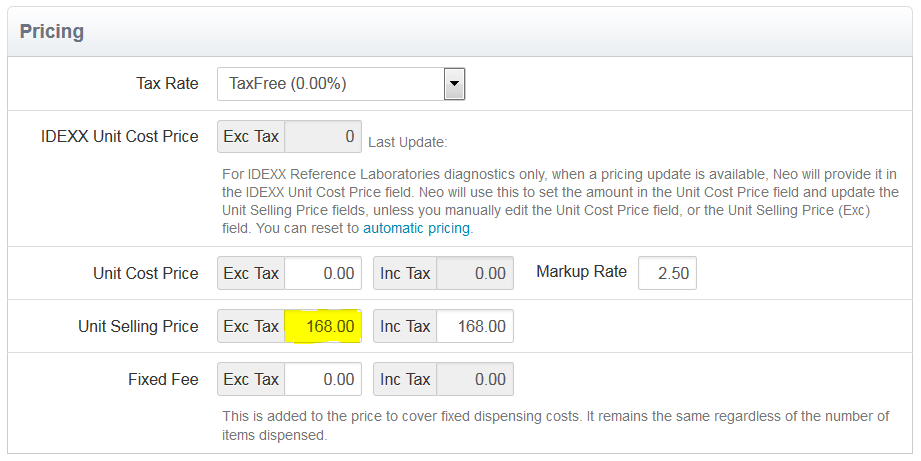
This is also a good time to enter pricing information, as in-house tests do not have default pricing.
If your practice has a new IDEXX in-house analyzer, activate and price the additional IDEXX VetLab Station diagnostic tests your practice will be running.
Go to Diagnostics > Directory of Services. You can filter the results by source to only show IDEXX VetLab Station products. Select the box beside the new tests you would like to activate, and then click Activate.
This is also a good time to enter pricing information, as in-house tests do not have default pricing.
ORDERING IN-HOUSE TESTS AND RECEIVING RESULTS
If you have successfully ordered the diagnostic test from a consultation in Neo, you can edit the order at the VetLab Station.
If the test is still in the pending list and there are no results for the requisition yet:- You can add to the order from the consultation. The additional test will be added to the existing requisition, so there are no duplicates. Results will be matched to the patient's record.
- You can remove a test from the consultation and it will be removed from the pending list on the VetLab Station. Results will not be received as the test was not run.
If the test is already running:
- You can add to the order from the consultation. The additional test will appear as a new test in the pending list. When you run the additional test, select Append Results to add the test to the existing requisition. This will also match all results to the patient's record.
- You can run new results on the VetLab Station to run a test again with a new set of results. For this additional testing run, the results will appear as unmatched results on the Diagnostics Orders and Results page. These unmatched results can then be manually reconciled to a patient's record.
If you have already ordered the test from Neo and the result has been received, you cannot cancel the order directly from Neo.
- To remove the test from the consultation, click the menu button
beside the IDEXX VetLab Station product, and select Remove
- Then at the VetLab Station, tap the order on the pending list and then tap Delete. Neo will retain the order and result, typically with an Ordered status, in the medical record.
After ordering an initial cortisol test, to order a secondary test under the same requisition ID, you must place the order on your IDEXX VetLab Station from Add Test > Append.