For customers in North America and Australia only
With the two-way connection between IDEXX Neo and IDEXX Reference Laboratories, you can order and receive IDEXX reference laboratory results in Neo. This integration is easy to use, saves time, helps you capture charges, and provides accurate diagnostic records.
You may have already completed these steps that are common to all IDEXX diagnostic integrations:
- The tax rate and diagnostic markup are automatically applied to all IDEXX diagnostic tests (IDEXX Reference Laboratories and IDEXX In-house Analyzers) when they're downloaded.
- Go to Administration > Branch Settings to review these default settings before connecting to VetConnect PLUS. This can save having to edit each individual diagnostic test later.
If you don't have an account, contact VetConnect PLUS customer support:
- Email support
- United States 1-888-433-9987, IDEXX VetConnect PLUS
- Canada 1-800-667-3411, IDEXX VetConnect PLUS
- Australia 1300 44 33 99, IDEXX VetConnect PLUS
- Once you have your credentials, go to Administration > IDEXX Diagnostics.
- Under Account Credentials, enter your IDEXX VetConnect PLUS account information.
- Click Connect. A confirmation message appears in the message bar.
- To change your credentials, click the menu button
and select Change Credentials.
Once you have connected VetConnect PLUS, the Directory of Services is automatically downloaded and it's time to manage reference data.
To use your laboratory invoice price instead of the list price when automatically marking up selling prices for your most commonly used tests, turn on IDEXX Reference Laboratories Invoice Pricing.
By turning on IDEXX Reference Laboratories Invoice Pricing:
- Your IDEXX Reference Laboratories diagnostic products Unit Cost Prices will automatically be updated to use your lab invoice pricing for your most commonly used tests.
- You will have the option to automatically update your Unit Selling Prices.
- Unit Selling Price = Lab Invoice Pricing X Markup
- Click the IDEXX Reference Laboratories Invoice Pricing toggle to turn on invoice pricing for your most commonly used tests (tests ordered in the last 12 months).
- Click Continue to confirm automatically updating your Unit Cost Prices to your IDEXX invoice pricing.
Or click Cancel and go to Step 4. Manage Reference data in this article. - Click Yes to automatically update your Unit Selling Prices to your lab invoice pricing X markup.
Or click No if you do not want your Unit Selling Prices to change.
Turn off IDEXX Reference Laboratories Invoice Pricing
You can turn off IDEXX Reference Laboratories Invoice Pricing to revert your Unit Cost Pricing back to list price, if desired.
- Click the IDEXX Reference Laboratories Invoice Pricing toggle to turn off invoice pricing for your most commonly used tests.
- Click Continue to automatically update your Unit Cost Prices back to list price.
- Click Yes to automatically update your Unit Selling Prices.
- On the menu, click your name. Then, click Administration.
- In the System Admin area, click IDEXX Diagnostics.
- Click the menu button
- Click the tab to map (Species, Breeds, Sex).
- Click Show [number] unmapped to view only the unmapped items.
- The list on the left shows your practice’s values. In the corresponding field on the right, search for and select the corresponding IDEXX value. Your changes are saved automatically.
Tip: Use the Search species or breeds box on the Breeds tab to quickly find specific breeds.
Note: If you add additional species later, you will need to return to this page and map the new species to standard IDEXX terms. It can take up to 24 hrs for this data to be available.
Complete the IDEXX Reference Laboratories-specific setup steps:
- In Neo, go to Administration > IDEXX Diagnostics.
- For multi-branch practices only. Select a branch from the Branch dropdown, as needed.
- Click the menu button
- If your practice only has one lab account ID, it will already be populated. If your practice has multiple lab account IDs, enter them now and click Add.
- Click Save Changes.
- If you converted data in to Neo, go to Reports > Dispensed Products in date range and select the Product Class you had previously assigned to reference laboratories products (for example, "Laboratory"). Running this report will then produce your list of products.
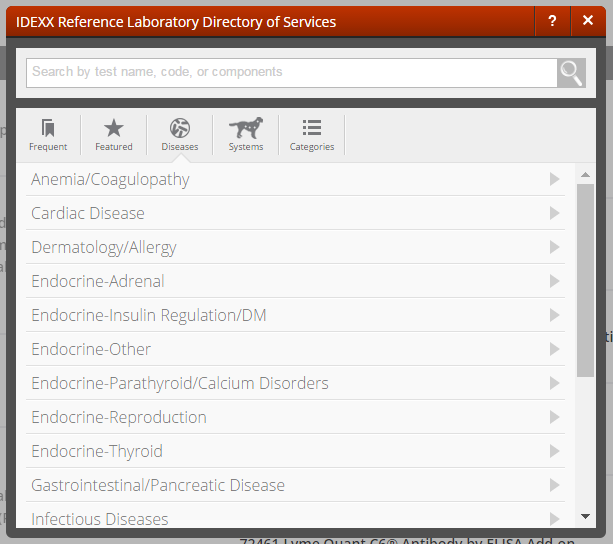
- If you are new to IDEXX Reference Laboratories, go to vetconnectplus.com and click Directory of Services. From this modal you can explore and filter available reference laboratory products, including new, featured, and by disease and system.
- On the menu, click your name. Then, click Diagnostics.
- Click Directory of Services.
- Select the checkbox next to each directory test you use in your practice.
- Select IDEXX Reference Laboratories to filter the source.
- Use the search box to find a specific diagnostic product.
- Select the Show only new last 30 days checkbox to display tests recently downloaded to the directory from VetConnect PLUS.
- Click Activate. Activated diagnostic products are added to the product list and can immediately be ordered from a consultation.
- Click each test's name and review the pricing information:
- The IDEXX Unit Cost Price (list price) is automatically downloaded and will update if IDEXX changes the cost in the directory of services.
- The IDEXX Unit Cost Price and Markup Rate are what determine the Unit Selling Price.
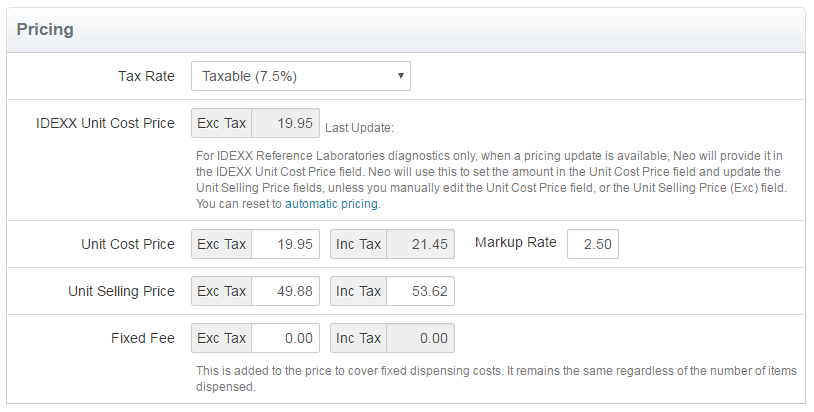
- If you manually adjust the Unit Cost Price or Unit Selling Price, the IDEXX Unit Cost Price will no longer automatically update the selling price if IDEXX changes the cost in the directory of services.
- You can adjust the markup rate for this product without affecting automatic pricing updates.
- You can also reset this product to automatic pricing by clicking the blue automatic pricing link.
6. Click Save Changes.
- If you have diagnostic tests in your system that you are replacing with an IDEXX diagnostic product that you activated from the directory of services, you must make your existing products inactive to prevent staff confusion and avoid duplicate product names (for example, having two SDMA products to choose from when you search for SDMA on a consultation).
- Remember, you must enter the IDEXX diagnostic directory product on the consultation to order it from Neo.
You're done!
Now that you have activated and priced your IDEXX Reference Laboratories tests:
- The results for diagnostics ordered from a consultation will automatically appear on the task list on the home page, and in the patient’s file. See Order diagnostic products for more information.
- Unmatched results (for example, from an add-on order) will appear on the Diagnostic Orders and Results page, where you'll need to reconcile them. See reconcile unmatched orders and results for more information.
For a list of Frequently Asked Questions, see the FAQs: IDEXX Reference Laboratories article.