For customers in North America and Australia only
This article covers frequently asked questions about the setup required to integrate Neo with IDEXX Reference Laboratories, including setting up lab account IDs and preparing a list of IDEXX Reference Laboratories products to activate in Neo.
To learn more about the overall setup steps required in Neo for the two-way integration with IDEXX Reference Laboratories, see Connect IDEXX Reference Laboratories.
To learn more about ordering diagnostics using IDEXX Reference Laboratories, see Order diagnostic products
IDEXX REFERENCE LABORATORIES SETUP
If you need assistance locating a test code, please contact IDEXX Reference Laboratories Support:
- United States 1-888-433-9987
- Canada 1-800-667-3411
- Australia 1300 44 33 99
- Have you activated IDEXX Reference Laboratories products in Neo? Go to Diagnostics > Directory of Services and select the available tests you would like to activate. You will not be able to order an IDEXX Reference Laboratories test until it is activated.
- Have you inactivated existing diagnostic tests? Remember that you must order the downloaded IDEXX diagnostic product, not an existing locally entered product to order from a consultation. To avoid this problem, inactivate any existing diagnostic products that you are replacing with IDEXX Reference Laboratories tests.
- If your practice has already been ordering IDEXX Reference Laboratories products: Go to Reports > Dispensed Products in date range and select the Product Class you had previously assigned to reference laboratories products (for example, "Laboratory"). Running this report will then produce your list of products.
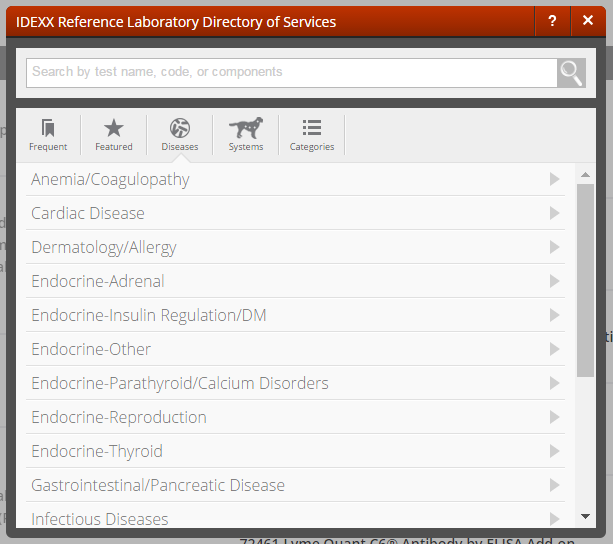
- If you are new to IDEXX Reference Laboratories: Your IDEXX veterinary diagnostic consultant will provide a list of tests, and an IDEXX Field Support Representative will assist with setting up test codes in Neo. You can also log in to vetconnectplus.com and click Directory of Services to explore and filter available reference laboratory products, including new, featured, and by disease and system.
CONNECT VETCONNECT PLUS IN NEO
- Email support
- United States 1-888-433-9987
- Canada 1-800-667-3411
- Australia 1300 44 33 99
- United States 1-888-433-9987
- Canada 1-800-248-3483
- Australia 1300 44 33 99
If you have already connected your VetConnect PLUS account and managed reference data, go to Administration > IDEXX Diagnostics to review your lab account IDs:
- Click the menu button
 in the credentials area and select Manage Lab Account IDs.
 - If your practice only has one lab account ID, it will already be populated.
- If your practice has additional lab account IDs, enter all lab IDs and click Add. This will help ensure accurate billing.
- Click Save Changes.
PRICING AND ACTIVATING IDEXX REFERENCE LABORATORIES TESTS
- The standard IDEXX Unit Cost Price (list price) for IDEXX Reference Laboratories tests is automatically downloaded and will update if IDEXX changes the cost in the directory of services.
- The IDEXX Unit Cost Price and Markup Rate are what determine the Unit Selling Price.
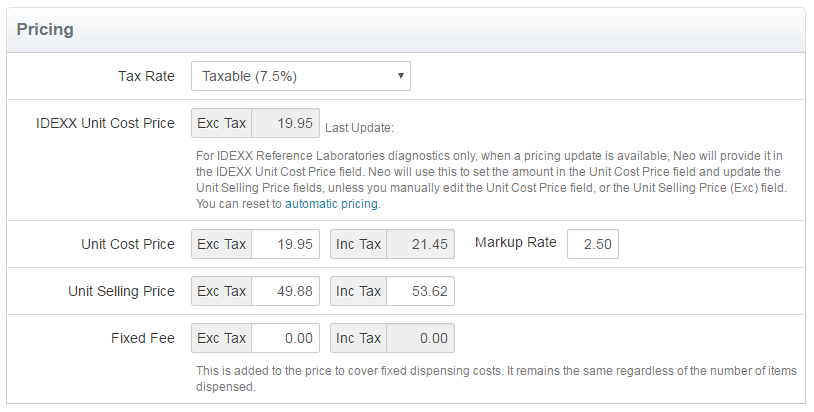
- If you manually adjust the Unit Cost Price or Unit Selling Price, the IDEXX Unit Cost Price will no longer automatically update the selling price if IDEXX changes the cost in the directory of services.
- You can adjust the markup rate for the IDEXX Reference Laboratories product without affecting automatic pricing updates.
- You can also reset this product to automatic pricing by clicking the blue automatic pricing link.
Always. Review the Directory of Services list of all available IDEXX Reference Laboratories tests, and activate the ones you plan to use with Neo. You can only add an IDEXX Reference Laboratories test to an estimate or order it from a consultation if it's been activated.
To activate available IDEXX diagnostic tests, go to Diagnostics > Directory of Services. You can filter the results by source to only show IDEXX Reference Laboratories products. Select the box beside all tests you would like to activate, and then click Activate.
This is also a good time to review pricing information, as IDEXX Reference Laboratories tests include standard IDEXX unit cost pricing.
Neo treats new IDEXX Reference Laboratories tests as completely separate products, so linking codes to existing diagnostics is not an option.
If you would like to order a new IDEXX Reference Laboratories product, go to Diagnostics > Directory of Services. You can filter the results by source to only show IDEXX Reference Laboratories products. Select the box beside the new tests you would like to activate, and then click Activate.
If you have existing diagnostic tests in your system that you are replacing with IDEXX Reference Laboratories products:
- Make your existing products inactive to prevent staff confusion and avoid duplicate product names (for example, having two SDMA products to choose from when you search for SDMA on a consultation).
- Remember to enter the IDEXX diagnostic directory product on the consultation to order it from Neo.
Navigate to the client Overview tab of the staff member or veterinarian, select the applicable practice affiliation, and click Save Changes. The selected practice affiliation will print on IDEXX Reference Lab requisitions, to ensure your practice receives discounted pricing on eligible tests when ordered.
Note: Please direct any questions regarding eligibility or pricing structure to your IDEXX Veterinary Diagnostic Consultant.
- The Last Update date on a diagnostic product's details page equals the last date your IDEXX Unit Cost Price was updated by IDEXX.
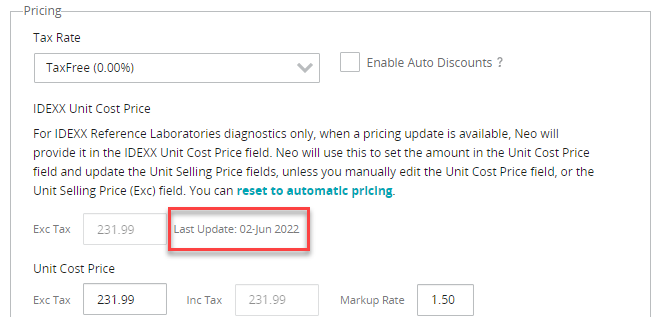
- The Updated date in your Directory of Services list equals the last date any of the diagnostic product's details were updated. For example, your practice updated the diagnostic product's label notes and saved the changes.

ORDERING IDEXX REFERENCE LABORATORIES TESTS AND RECEIVING RESULTS
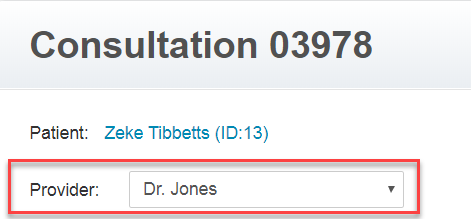
- You can order the add-on directly from VetConnect PLUS.
- Add the diagnostic product to a consultation to capture the charges for the add-on.
Note: Do not order the diagnostic product on the consultation. - Remember that the result for the add-on test will not be matched to a lab request; so it will appear as an unmatched result on the Diagnostics Orders and Results page. From here it can be manually reconciled to the patient's record
If you would like to link multiple products together on a consultation, you can create a procedure template to do this.
If the consultation is still open, you can click the menu button  beside the IDEXX Reference Laboratories product, and select Print Order Form.
If the consultation is closed, go to the Diagnostics page and click the menu button beside the IDEXX Reference Laboratories product to select Print Order Form.