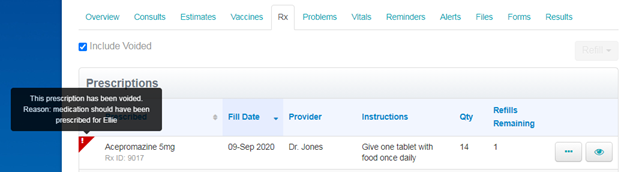
Occasionally, you may need to void a prescription. For example, if the wrong product was prescribed for the patient or the prescription was entered on the incorrect patient record.
In Neo, you can void a prescription easily from either the patient consultation or Rx tab.
Note: If a prescription has been refilled, only the most recent refill can be voided. When a refill is voided, the previous prescription record for that Rx ID will become the most recent; and the remaining number of refills will be automatically increased by 1.
- See Create a prescription to learn how to add a new prescription for a patient.
- See Edit a prescription to learn how to update prescription details on draft or closed consultations.
- See Refill a prescription to learn how to how to refill a prescription that has preauthorized refills available.
- See Discontinue a prescription to learn how to remove remaining refills from a prescription no longer part of a patient’s treatment plan.
- See View a patient’s prescription history to learn how to review all of a patient’s prescription history including refills and voids.
- See Update the _dispensing_label_ template to learn how to update your existing prescription label.
Permissions: Edit Consultations
Void a prescription from a draft patient consultation:
- Search for and select the patient.
- Click the Consults tab.
- Click the consultation number to open the draft consultation for editing.
Tip: You can also click the menu button, then click View to open the consultation. - In the Product/Service area, on the consultation product line click the menu button
 and select Remove.
 - Enter the reason why you are voiding the prescription. For example, prescribed wrong medication.
- Click Save.
Note: After you click Save, the product will be removed from the consultation and the prescription record will be hidden from the default Rx tab view. If this was a refill, the refill will be re-added to the now-current prescription record.
Void a prescription from the patient Rx tab:
- Search for and select the patient.
- Click the Rx tab.
- Tip for multi-branch practices: Click the View button
 to see the branch where the prescription was created. You can only void prescriptions that were created at your branch.
 - Locate the prescription record you want to void, click the menu button and click Void Rx.
- Enter the reason why you are voiding the prescription. For example, prescribed wrong medication.
- Click Save.
Note: After you click Save, the voided prescription record will be hidden from the default Rx tab view. If this was a refill, the refill will be re-added to the now-current prescription record.
Note: The consultation status determines from where a prescription can be voided and whether the consultation product will also be removed.
|
Consultation Status |
Current prescription /refill can be voided from… |
Voided information |
|
Draft |
Consultation line Rx tab |
Consultation product line Prescription on Rx tab |
|
Closed (Unpaid, Paid, Partially Paid) |
Rx tab |
Prescription on Rx tab IMPORTANT: The consultation product line will not be removed from a closed invoice. You must complete a refund to return the voided product’s quantity back to its O/H stock level. |
View a voided prescription from the Rx tab
After a prescription is voided, the voided details can be viewed from the patient’s Rx tab.
- Search for and select the patient.
- Click the Rx tab.
- Select the Include Voided checkbox.
- Voided prescriptions will be identified by a red flag in the upper-left corner of the voided row. You can:
- Use your mouse to hover over the red flag to quickly view the void reason.
- Click the View button to see additional details about the voided prescription including: reason for the void, audit information (the logged in user that voided the prescription and the void date), and any previous edits to the prescription record.